Key takeaways
- For most children, a screen-free pen tablet such as the Huion H420X or Inspiroy H640P, or the entry-level Wacom Intuos Small, is the best value drawing…
For most children, a screen-free pen tablet such as the Huion H420X or Inspiroy H640P, or the entry-level Wacom Intuos Small, is the best value drawing tablet, because it keeps costs low and protects a good computer screen from sticky fingers. Children aged around nine and up who want to draw directly on a display should look at a pen display such as the Wacom One 14 or Huion Kamvas 13, which sit closer to or above the $150 cap depending on the retailer and sale. Choose by age, by whether a computer is available at home and by how serious the child is about art.
Our top picks



As an Amazon Associate we earn from qualifying purchases at no extra cost to you.
At a glance: tablet types compared
| Model or type | Typical age | Best for | Key stated or reported points | Limits |
|---|---|---|---|---|
| Huion H420X (or 420) | 6 and up | The cheapest sensible first tablet | Small pen tablet, no screen; a reviewer used it with a nine-year-old niece | Very small active area; needs a computer |
| Huion Inspiroy H640P | 9 and up | Small hands and school bags | Active area about 6 by 4 inches; the maker lists 8192 pressure levels, with no tilt support | No screen, so a learning curve for hand-eye coordination |
| Wacom Intuos Small | 7 and up | Reliable drivers and support | Entry-level Wacom pen tablet with a battery-free pen; reviewers praise its driver quality and long life | Needs a computer or compatible device |
| Wacom One 14 | 10 and up | Drawing directly on a screen | Entry-level 14 inch pen display with a battery-free pen and a single USB-C cable, according to reviewers | Often above the budget cap; needs a computer |
| Huion Kamvas 13 (Gen 3) | 10 and up | Older children and teens | Pen display; the pen is listed at 16,384 pressure levels with tilt recognition | May exceed the cap; needs a computer |
| LCD writing tablets (Boogie Board style) | 3 and up | Doodles and no-mess drawing for young children | Pressure-sensitive LCD that erases with a button; no computer or app needed | No saving or editing for most basic versions |
Three kinds of “drawing tablet” for kids
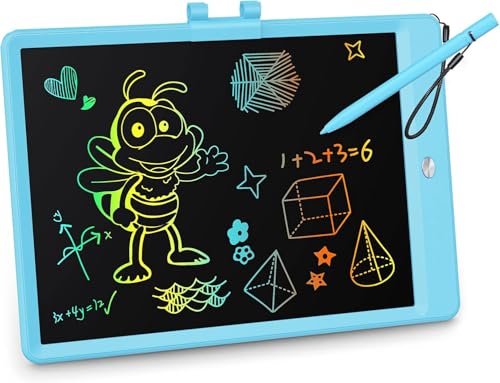
The phrase covers three very different products. The first is the simple LCD writing tablet: a battery-powered slate you draw on with a stylus and erase with one button. It suits preschoolers and travel but does not make digital files. The second is the pen tablet, a flat surface that connects to a computer and moves a cursor; the child looks at the computer screen while drawing on the pad. The third is the pen display, which has a built-in screen so the child draws directly on the image. Each step up adds capability and cost, and older children generally benefit more from the upper end.
Budget tiers within the $150 cap
Budget tier
Basic LCD writing tablets and the smallest pen tablets from Huion and Wacom sit here. For younger children they offer the most freedom and the least risk. Reviewers call the Huion 420 line the cheapest option worth buying for a child, and the Wacom Intuos Small is described as the best budget entry from a name-brand maker. Since no screen is included, a computer, laptop or compatible device is required for pen tablets.
Mid-range tier
The mid-range includes the Inspiroy H640P and slightly larger pen tablets. A larger active area lets the child draw with their whole hand rather than just the fingers. The H640P is noted as compact enough for a school bag and is recommended by reviewers for children around nine and older who want to try digital art without a large investment.
Upper tier
At or just above the cap you find entry-level pen displays like the Wacom One 14 and Huion Kamvas 13. Because the child draws directly on a screen, they are easier to understand and often more motivating, but they need more desk space, a free USB port and a computer able to run drawing software. If the price is above the cap in your region, a larger pen tablet is a better choice than stretching the budget.
What to look for
- Active area: Small tablets are cheap and portable, but very small areas can frustrate children who draw with large arm movements. A roughly 6 by 4 inch area is described as a good fit for smaller hands.
- Pressure sensitivity: Makers list pressure levels such as 8192 or 16,384. For children, more levels matter less than a comfortable pen with a consistent feel.
- Battery-free pen: Wacom and Huion pens are generally battery-free, which removes one thing that can run out mid-drawing.
- Drivers and software: Reviewers say Wacom’s drivers are the most polished, while Huion offers similar hardware at lower prices with slightly less refinement. Check that the tablet works with your computer’s operating system.
- Durability: Plastic surfaces scratch and pen nibs wear out, so look for replacement nibs in the box.
- Software: Free options such as Krita and many browser-based tools work with pen tablets; some makers bundle introductory software.
Detailed notes on the main picks
Huion 420 and H420X
These are tiny, light and inexpensive. They connect by USB and suit use with a school laptop or family PC. The active area is small, which restricts sketches, but it is enough to try digital drawing, signing and note-taking. They are a low-risk first purchase for children from around six, with an adult helping set up.
Huion Inspiroy H640P
The H640P is a step up with an active area about 6 by 4 inches and a battery-free stylus. The maker lists 8192 pressure levels, and reviewers note the lack of tilt recognition, which most children will not miss. It is compact and works well with Chromebooks and laptops that support the required drivers.
Wacom Intuos Small
Wacom’s entry model is valued for reliability. Reviewers praise its drivers and pen feel, and the maker lists 4096 pressure levels for its battery-free pen. If you want a trusted name and a warranty, this is the most conservative buy.
Wacom One 14 and Huion Kamvas 13
These pen displays let a child draw directly on a screen. Reviewers describe the Wacom One 14 as a good fit for beginners and students because it is simple, with a single USB-C cable and a battery-free pen. The Kamvas 13 is aimed at older children and teens and lists higher pressure levels plus tilt support. Both need a computer and desk space.
Pick X if you need Y
| If you need… | Pick | Why |
|---|---|---|
| The lowest-risk first tablet | Huion 420 or H420X | Cheapest, simple, small |
| A portable pad for school or travel | Huion Inspiroy H640P | Compact active area |
| Dependable support and drivers | Wacom Intuos Small | Name-brand software and warranty |
| Drawing directly on a screen | Wacom One 14 or Huion Kamvas 13 | Pen display with natural hand-eye alignment |
| No computer and no mess | LCD writing tablet | Battery-powered doodling |
Alternatives
- Tablet computers with a stylus: A child-focused tablet plus a drawing app can serve as both a drawing device and a general-use device, though it may exceed the budget.
- Light-up drawing boards: Glow-in-the-dark or neon boards are fun for young children without screens.
- Paper and a good set of pencils: For beginners, traditional art tools remain an inexpensive way to build core skills.
Setup and safety notes
Pen tablets connect to a computer, so a parent should handle driver installation, check the operating system is supported and set up a child-safe user account. Teach children to keep liquids away from electronics and to store the pen in its holder. Keep spare nibs in a safe place; small parts can be a choking hazard for younger children. Follow the maker’s age guidance and supervise screen time.
Online roundups on drawing tablets are frequently affiliate-style, and their rankings differ. The most consistent advice is to begin with a small, inexpensive pen tablet and upgrade only if the child keeps drawing.
Frequently Asked Questions
What age is right for a drawing tablet?
Simple LCD writing tablets suit children from about three. Small pen tablets are usually fine from around six or seven with adult help, and pen displays are better for ages ten and up. Always follow the maker’s age guidance.
Do drawing tablets work without a computer?
LCD writing tablets do, since they are self-contained. Pen tablets and pen displays need a computer, laptop or compatible device. Check the maker’s compatibility list before buying.
Is a pen tablet or a pen display better for a child?
A pen display is more intuitive because the child draws on the image itself. A pen tablet is cheaper and smaller but requires looking at the computer screen while drawing. Many children adapt quickly, so start with the tablet if budget is tight.
Is Huion as good as Wacom?
Reviewers say Huion matches Wacom’s pressure levels at lower prices, while Wacom is more polished in drivers and support. For a child’s first tablet, either can work well. Choose Wacom if you value long-term support.
What software can children use for free?
Free programs such as Krita and several browser-based drawing tools work with pen tablets. Check that the software suits your child’s age and that you are comfortable with any online features.
How do I look after a drawing tablet?
Keep it clean and dry, store the pen in a holder and replace worn nibs. Avoid pressing hard with the pen, and wipe the surface with a soft dry cloth.