Key takeaways
- Compare the best drawing tablets for kids by active area, pen pressure, pen type and OS support, with battery-free pens from Wacom, XP-Pen, Huion and more.
- Top Pick: Wacom Intuos Small (CTL4100)
- Runner-up: XP-Pen Star G640
- Also consider: Huion Inspiroy H640P
A pen drawing tablet is the flat, screenless pad a child draws on with a stylus while looking up at the computer monitor. It is a different tool from an LCD writing board, which only shows a faint line on its own surface, and from a standalone touchscreen tablet, which runs apps by itself. A graphics pen tablet has no picture of its own: it sends the pen strokes to drawing software on a connected Windows PC, Mac, Chromebook or, for some models, an Android phone.
As an Amazon Associate, we earn from qualifying purchases.
The five models below are compact pen tablets that makers position for beginners and students. They were compared on the figures their makers publish: active drawing area, pen pressure levels, whether the pen is battery-free or needs charging, shortcut keys, and stated operating system compatibility. None of the five makers publishes an age rating for these models, so the specs list age guidance as not stated; an adult should handle the driver download and first setup.
Disclosure: this page includes affiliate links, and if you buy through them we may earn a commission at no extra cost to you.
Quick Answer
The Wacom Intuos Small is the safest first drawing tablet for most kids: a battery-free pen, certified Chromebook support and a simple four-key layout, backed by the most widely supported driver software in this group. Children who want more shortcut keys should look at the Huion Inspiroy H640P or UGEE S640; the XP-Pen Star G640 and GAOMON S620 are the lightest, simplest options.
The Five Tablets Compared
Wacom Intuos Small (CTL4100)
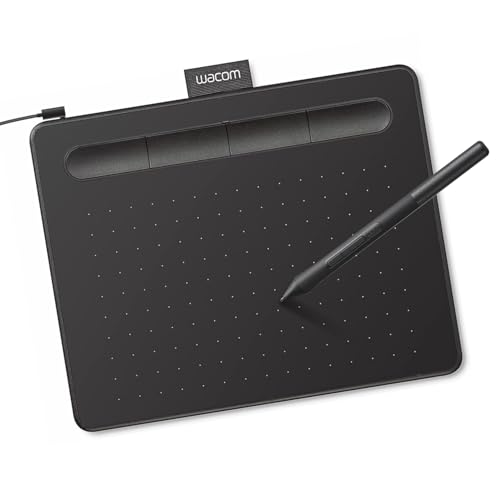
Wacom is the brand most art teachers and tutorial makers assume a beginner is using, and the Intuos Small is its entry model. The active area measures 6.0 by 3.7 inches, which maps comfortably onto a laptop screen without asking a child to make wide arm movements. Its Pen 4K stylus reads 4,096 pressure levels, the lowest figure in this group, but it is battery-free EMR, so the pen never needs charging and cannot run flat mid-drawing. Four customisable ExpressKeys sit along the top edge for shortcuts such as undo and zoom. Wacom also bundles downloadable creative software with registration, which gives a child a legitimate drawing app to start with. A separate Bluetooth version exists, so check the listing variant before ordering.
Specs
- Active area: 6.0 x 3.7 inches
- Pen pressure: 4,096 levels
- Pen type: Battery-free (Wacom Pen 4K, EMR)
- Shortcut keys: 4 ExpressKeys
- Connection: USB cable (this model)
- OS compatibility: Windows, macOS, Chromebook and Android, as stated by the maker
- Maker-stated age guidance: Not stated
See the Wacom Intuos Small on Amazon
XP-Pen Star G640
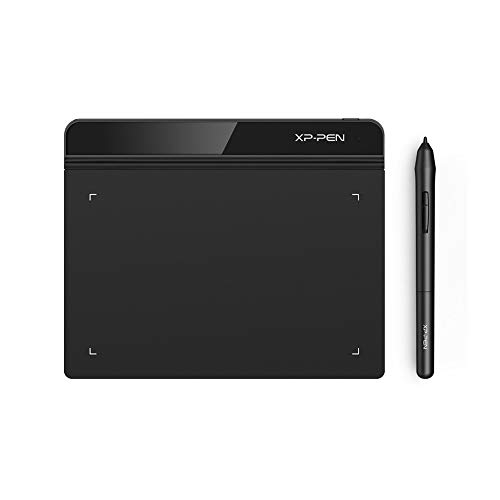
The Star G640 is the minimalist of the group: a slim pad with a 6 by 4 inch active area and no shortcut keys on the tablet itself. What it offers instead is an 8,192-level battery-free PN01 pen, double the Wacom’s pressure figure, plus twenty replacement nibs in the box, which suits kids who press hard and wear tips down. The pen carries two side buttons for right-click or eraser switching. XP-Pen states compatibility with Windows 7 and above, macOS 10.10 and above, and Chrome OS 88 and above, so it covers most school Chromebooks as well as home computers. With no keys to configure, setup is the simplest here.
Specs
- Active area: 6 x 4 inches
- Pen pressure: 8,192 levels
- Pen type: Battery-free (PN01 stylus)
- Shortcut keys: None on the tablet; 2 buttons on the pen
- Resolution: 5,080 LPI
- Connection: USB cable
- OS compatibility: Windows 7 or later, macOS 10.10 or later, Chrome OS 88 or later
- Maker-stated age guidance: Not stated
See the XP-Pen Star G640 on Amazon
Huion Inspiroy H640P

Huion’s Inspiroy H640P matches the XP-Pen on pressure while adding the controls the G640 leaves off. The active area is 6.3 by 3.9 inches, the battery-free PW100 pen reads 8,192 pressure levels, and Huion states the pen supports tilt, which lets drawing apps angle brush strokes the way a real pencil shades on its side. Six customisable press keys run down the left edge. Compatibility is the widest in this group: Huion lists Windows 7 or later, macOS 10.12 or later, Android 6.0 or later through the included OTG adapter, and Linux (Ubuntu). Huion also states plainly that the H640P is not suitable for iPhone or iPad, which is worth knowing before buying for an Apple-only household.
Specs
- Active area: 6.3 x 3.9 inches
- Pen pressure: 8,192 levels
- Pen type: Battery-free (PW100 stylus), tilt support stated by the maker
- Shortcut keys: 6 customisable press keys
- Resolution: 5,080 LPI
- Connection: USB cable, OTG adapter included for Android
- OS compatibility: Windows 7 or later, macOS 10.12 or later, Android 6.0 or later, Linux (Ubuntu); not suitable for iPhone or iPad
- Maker-stated age guidance: Not stated
See the Huion Inspiroy H640P on Amazon
GAOMON S620
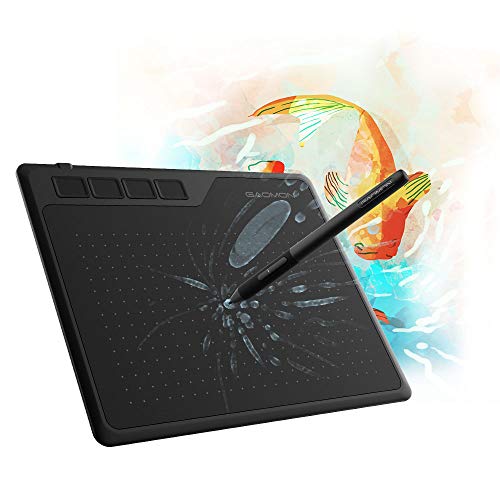
The GAOMON S620 has the largest drawing surface in this group at 6.5 by 4 inches, in a pad that weighs 8.8 ounces by the listing’s product information, so it travels easily in a school bag. The battery-free AP32 pen reads 8,192 pressure levels, and four customisable ExpressKeys sit on the tablet for the shortcuts a child uses most. GAOMON states a 266 PPS report rate and 5,080 LPI resolution. For families who want a slightly bigger canvas without stepping up to a mid-size tablet, this is the natural pick.
Specs
- Active area: 6.5 x 4 inches
- Pen pressure: 8,192 levels
- Pen type: Battery-free (AP32 pen)
- Shortcut keys: 4 customisable ExpressKeys
- Resolution: 5,080 LPI; report rate 266 PPS
- Connection: USB cable
- OS compatibility: Windows 7 or later, macOS 10.12 or later and Android devices, as stated by the maker
- Maker-stated age guidance: Not stated
UGEE S640

The UGEE S640 is the most playful design here, sold in colours including Living Coral and Very Peri alongside Carbon Black, which matters to some kids more than any specification. Under the colour it is a full-featured beginner pad: a 6.3 by 4 inch active area, a battery-free stylus with 8,192 pressure levels, and tilt support up to 60 degrees as stated in UGEE’s specifications. Its ten programmable shortcut keys are the most in this group, useful once a child learns a drawing app well enough to want brush-size and undo keys under their fingers. UGEE lists support for Windows, Mac, Chrome OS and Android, so it can follow a child from a home PC to a school Chromebook. A separate wireless S640W exists, so confirm the variant on the listing.
Specs
- Active area: 6.3 x 4 inches
- Pen pressure: 8,192 levels
- Pen type: Battery-free stylus, tilt up to 60 degrees stated by the maker
- Shortcut keys: 10 programmable keys
- Resolution: 5,080 LPI
- Connection: USB cable (wired model)
- OS compatibility: Windows, Mac, Chrome OS and Android, as stated by the maker
- Maker-stated age guidance: Not stated
How to Choose
Start with the computer, not the tablet. Every model here needs a host device, so list what your child will actually plug into: a Windows laptop, a Mac, a school Chromebook, or an Android phone. The Wacom Intuos Small is the only one of the five whose maker highlights certified Chromebook support, while the Huion H640P and UGEE S640 add Android phone support through an OTG adapter, and none of the five works with an iPad. Buying the tablet that matches the machine you already own avoids the most common disappointment with drawing tablets for kids.
Next, think about active area. All five pads sit in the 6 to 6.5 inch class, which pairs naturally with laptop and Chromebook screens and keeps hand movements small for younger children. A much larger pad is not automatically better for a child: the pen has to travel further for the same line, and desk space disappears fast. If your child draws on a large desktop monitor, the GAOMON S620’s slightly wider area is the comfortable step up within this group.
Pressure levels are the figure makers advertise hardest, but treat them as a minor factor. The Wacom’s 4,096 levels already give smooth control over line thickness; the 8,192-level pens on the other four are finer on paper, yet most children will not feel the difference in everyday sketching apps. Pen type matters more day to day: every pen here is battery-free, so there is nothing to charge and the pen works the moment it is picked up.
Finally, count the shortcut keys only if your child already uses keyboard shortcuts. Beginners draw happily with the XP-Pen Star G640’s bare surface, while children a few months into an app like Krita or Clip Studio Paint start reaching for undo, zoom and brush-size keys, which is where the Huion’s six and the UGEE’s ten keys earn their place. Plan for an adult to install the driver from the maker’s official site and set the pen buttons once; after that, these pads need almost no looking after.
Who Should Skip
Skip all five if your child expects to draw directly on a picture. These are screenless pen tablets: the drawing appears on the computer monitor, not on the pad, and some children dislike that hand-eye split. A pen display or a standalone touchscreen tablet is the right category for them, at a very different budget. Skip them, too, if the household’s only computer is an iPad, because none of these models lists iPad support. And if your child is still at the scribble-board stage, a simple LCD writing tablet is cheaper and needs no computer, driver or setup.
FAQ
Does my child need a computer for these tablets?
Yes. A pen tablet is an input device, not a computer. It must be connected by USB to a Windows PC, Mac or Chromebook, and some models also work with Android phones through an included adapter. The drawing software runs on that host device, and the picture appears on its screen.
Are the pens really free of batteries and charging?
For these five models, yes. Each maker states a battery-free pen that takes its power from the tablet surface itself, so there is nothing to plug in and no battery to replace. If you shop beyond this list, check the pen type on the listing, because some tablets still use pens that need charging.
Which tablet works best with a school Chromebook?
The Wacom Intuos Small is the clearest answer, since Wacom markets it for Chromebook use. The XP-Pen Star G640 states Chrome OS 88 or later support, and UGEE lists Chrome OS for the S640. Confirm your school allows driver installs first, because some managed Chromebooks restrict them.
What age are these drawing tablets for?
None of the five makers publishes an age rating for these models, so treat age guidance as not stated rather than assuming one. In practice the deciding factors are whether the child can use a computer drawing app with an adult’s help for setup, and whether they are comfortable drawing while looking at a separate screen.
Final Verdict
For most families, the Wacom Intuos Small is the first drawing tablet to buy: dependable drivers, certified Chromebook support and a battery-free pen make it the easiest to live with. The Huion Inspiroy H640P is the better pick when you want more keys, tilt support and Android compatibility in the same compact size, and the UGEE S640 suits a child who will grow into its ten shortcut keys. The XP-Pen Star G640 and GAOMON S620 are simple, light pads for drawing and schoolwork. Match the tablet to your computer first, and any of the five will serve a young artist well.